Team
The Team page provides a full overview of everyone with access to your CryoCloud environment and what they can see or do. From here, you can:
•   Add new members

•   Remove existing members

•   Change a user’s team role (Admin / Member / Guest)

•   Transfer ownership of the team

•   Manage project and dataset permissions for Members and Guests
Main actions
Managing team members
From the Team page, you will see a list of all users, including their name, email address, and assigned role. To learn how to add new members to your team, see the Add Members page here
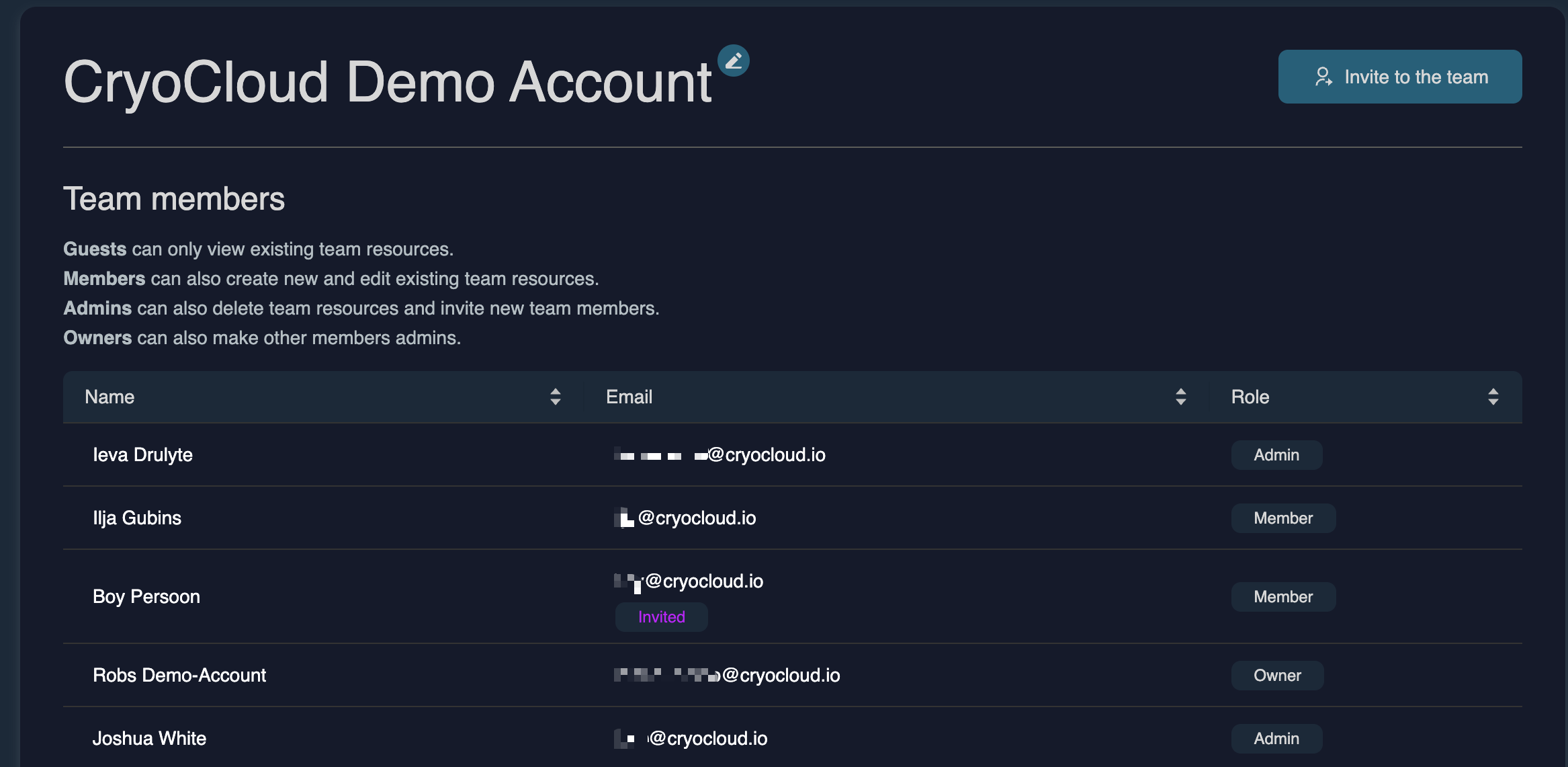
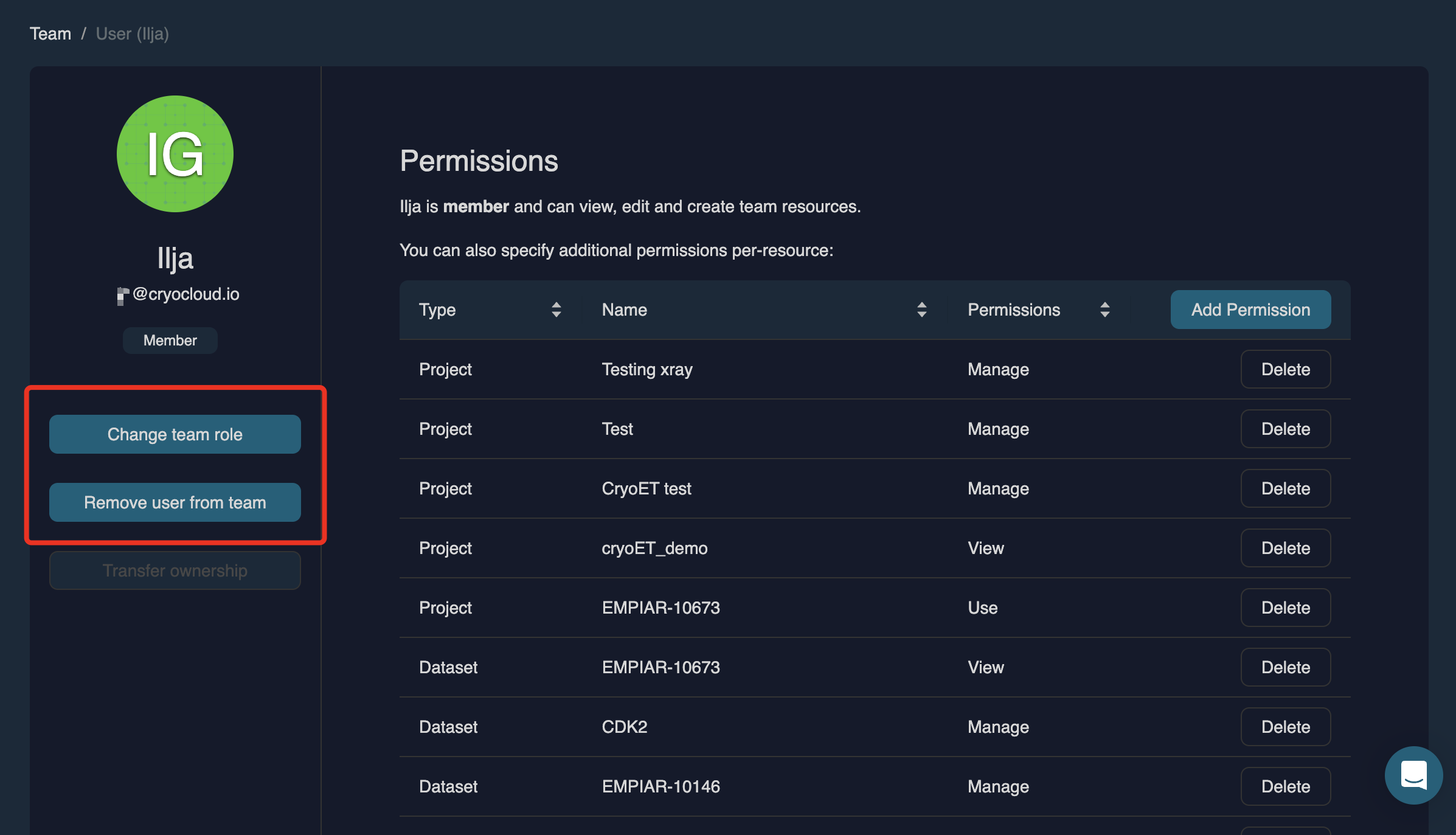
To manage a specific user, click on the name of the person you want to edit. This opens the User Menu, where you can:
•   Change team role (Admin / Member / Guest)

•   Remove user from team

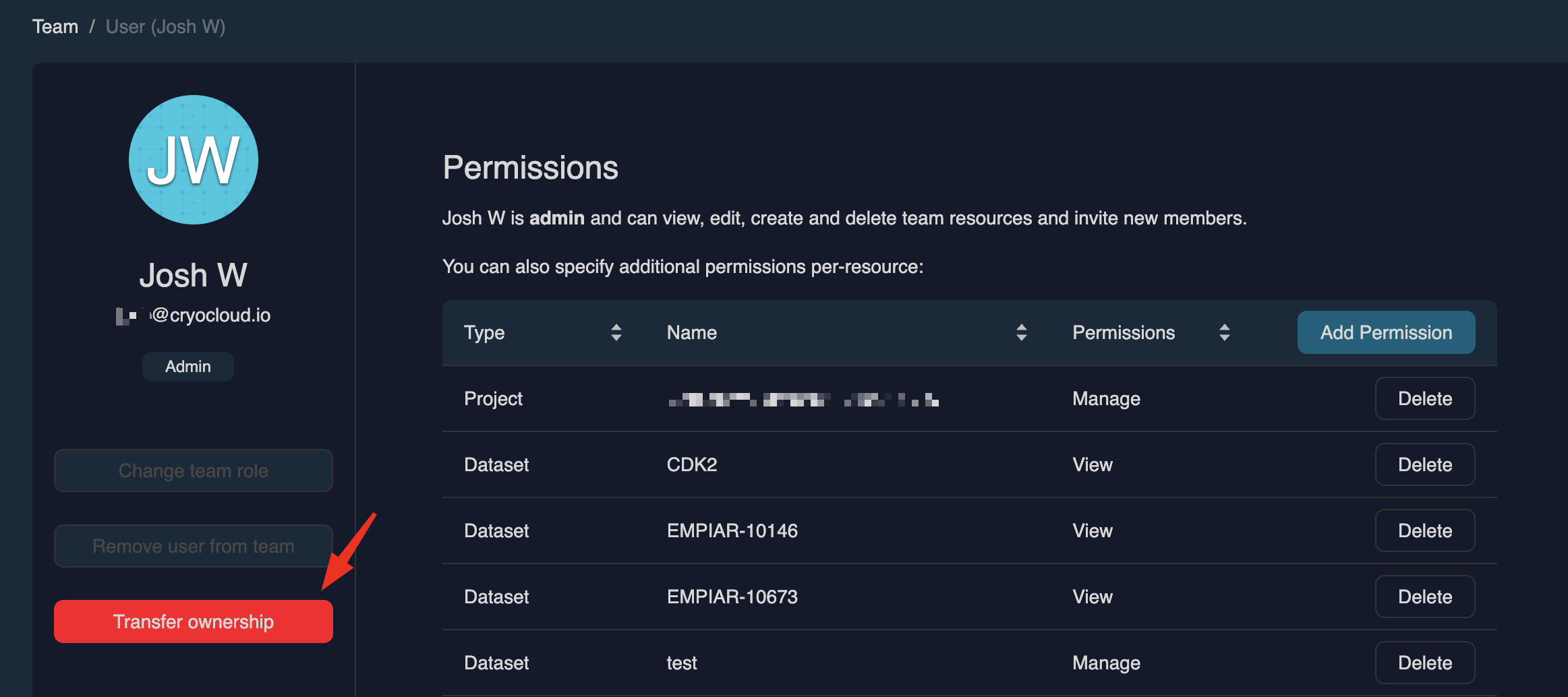
•   Transfer ownership (only visible to the current owner)
Sharing datasets & projects with Members and Guests
By default, Members and Guests do not see all datasets and projects in the team. Admins must explicitly grant access.
To share resources with a team member, click on View or click on the user’s name to open their User Menu. You will see a list of all resources they currently have access to, including the permission level.
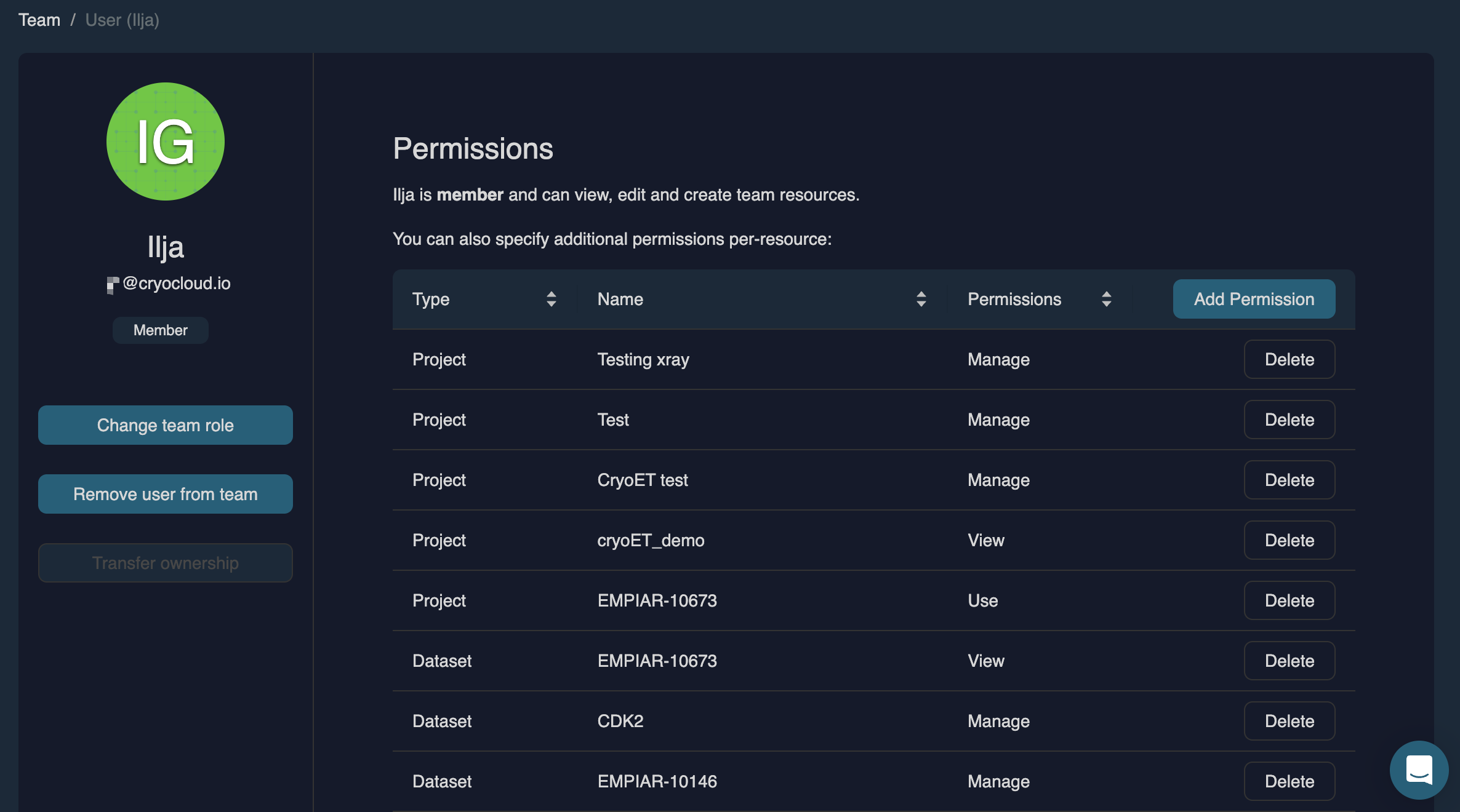
To remove access to datasets or projects, click Delete.
To grant access to additional datasets or projects, click Add Permission in the top-right corner. You can then choose a resource type (Project or Dataset), resource name and permission level.
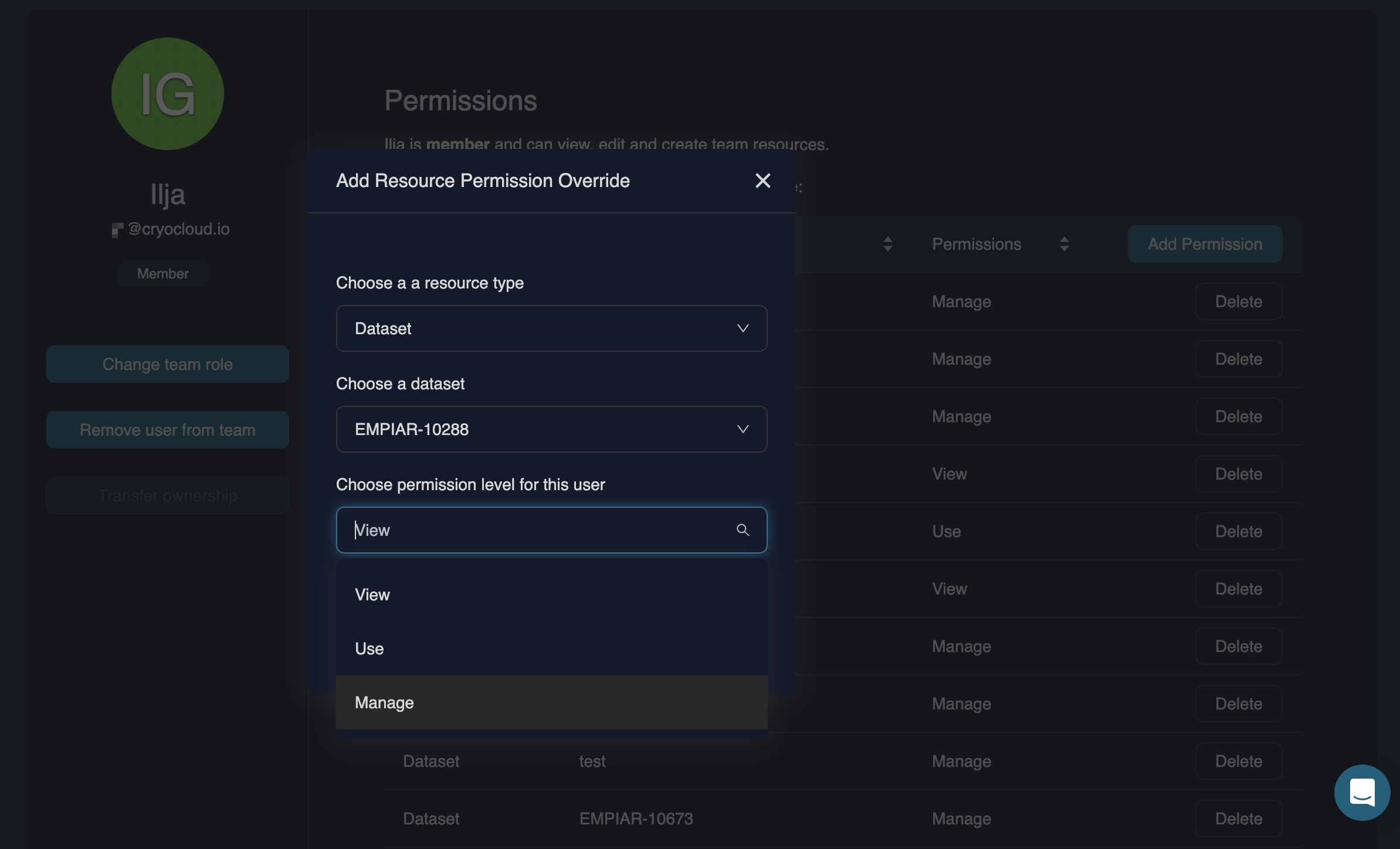
Once you click Add permission override, the project or dataset will immediately appear in the user’s list and become accessible with the permission level you selected.
Permission levels
•   Manage – User can run jobs and share the dataset/project with others.

•   Use – User can run jobs but cannot share the resource.

•   View – User can only view existing jobs and results.